
The Fastest Way to Sync Text Between Phone and PC Without Logging In
Owner · · 3 min read
On this page
The Fastest Way to Sync Text Between Phone and PC Without Logging In
We have all been there: you find an important web link, a snippet of code, or a paragraph of notes on your smartphone and suddenly need to transfer text from mobile to computer. Or perhaps you are working across multiple workstations and want an effortless way to send text between two computers without setting up complex network drives or cloud accounts.
For years, people have relied on clunky, repetitive workarounds:
-
Scanning a QR code to launch WhatsApp Web just to message a note to yourself.
-
Opening Google Keep or Notion and waiting for background sync delays.
-
Composing an email, sending it to your own address, and refreshing your inbox.
These methods work, but they clutter your chat threads, require constant authentication, and waste time.
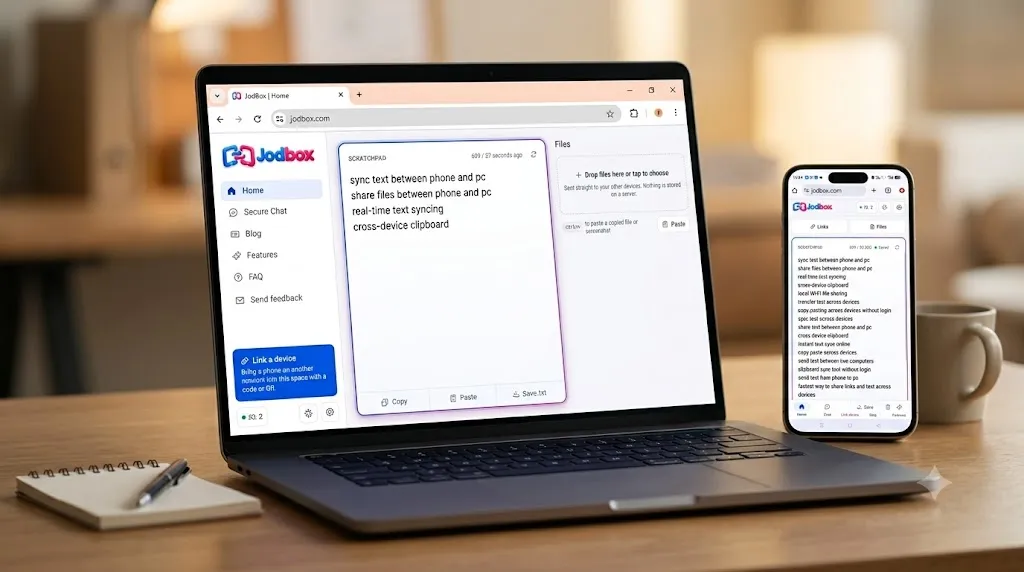
JodBox eliminates that friction entirely. It acts as an instant, browser-based bridge designed to transfer text across devices and share files in real time—with zero app installations and no account required.
Key Features of JodBox
1. Live Real-Time Scratchpad (Cross-Device Clipboard)
Unlike traditional note apps that require manual saving or refreshing, the JodBox Scratchpad functions as an active, online cross-device clipboard.
-
Type or paste text on your mobile phone, and it reflects instantaneously on your computer screen.
-
Any edits made on your desktop update on your mobile device simultaneously with zero lag.
-
It is the easiest way to copy paste across devices, whether you want to send text to another computer or share quick notes across multiple phones.
2. Local Wi-Fi File Sharing (Zero Data Usage)
Transferring files between nearby devices should not consume your mobile internet bandwidth.
-
JodBox includes a dedicated Files section that handles local Wi-Fi file sharing directly between your devices.
-
Upload a document, image, or media file on one screen, and it immediately appears ready for download on your other linked screens without using any external data.
How to Use JodBox (Step-by-Step)
Getting started takes less than ten seconds:
Method 1: Automatic Discovery (Same Wi-Fi)
-
Ensure both devices (e.g., your phone and PC) are connected to the same Wi-Fi network.
-
Open JodBox in your web browser on both screens.
-
The devices detect each other automatically. Paste your text into the Scratchpad or drop an item into the Files tab.
Method 2: Across Different Networks or Multiple Devices
If your devices are on separate networks (such as mobile data on your phone and office Wi-Fi on your laptop), you can connect them manually:
-
Click the Link Device button on your primary screen.
-
Pair your other screens using any of these quick options:
-
Scan the QR Code with your phone's camera.
-
Enter the Pairing Code displayed on the screen.
-
Connect via IP address.
-
-
Multi-Device Support: To connect three or more devices simultaneously, simply scan the same QR code or enter the same Pairing Code across all devices.
JodBox vs. Traditional Alternatives
[table]
Start Sharing Effortlessly
Whether you are a developer moving API keys, a student gathering research links, or someone looking for a clean clipboard sync tool without login, you no longer need to rely on messaging apps or personal emails.
Open JodBox in your browser today and experience the fastest way to sync text across devices.